Use Folio AI in PowerPoint
Folio AI runs as an add-in inside PowerPoint, so it works right next to your slides with nothing to download to your computer. It's supported on PowerPoint for Microsoft 365, PowerPoint 2021 and 2019, and PowerPoint on the web, on both Windows and Mac. Follow the steps below to get set up.
1. Get the Folio AI add-in
There are two ways to install Folio in PowerPoint:
- From PowerPoint (recommended). Open PowerPoint, go to the Home or Insert tab, select Add-ins (or Get Add-ins), search for Folio AI, and choose Add.
- From the Microsoft AppSource store. You can also install Folio directly from Microsoft's store, then return to PowerPoint. Open the Folio AI listing on AppSource →
Already have PowerPoint installed? You can open Folio in the desktop app directly.
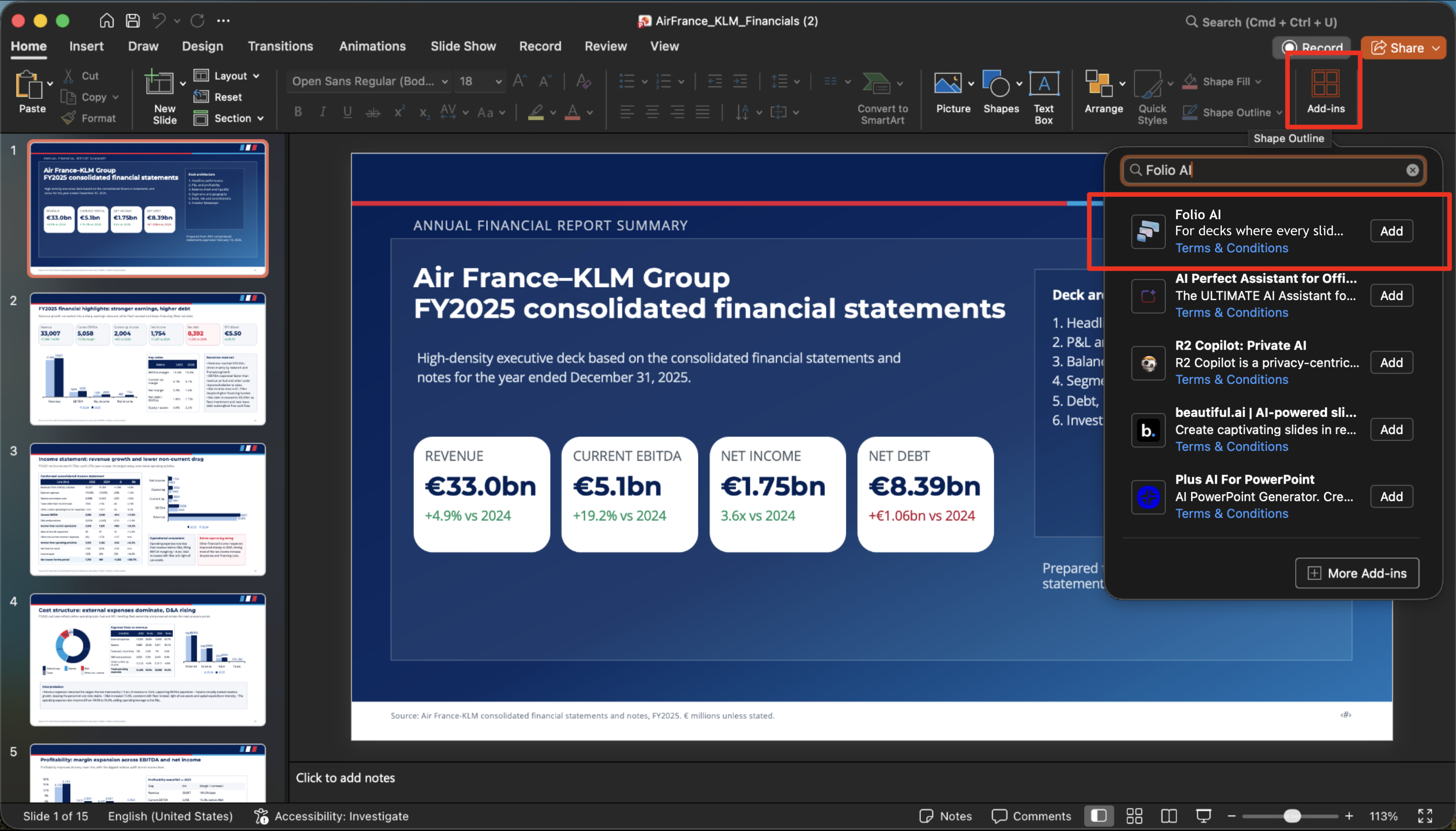
2. Launch Folio AI
After installing, the Folio AI button appears in your PowerPoint ribbon (usually on the Home tab). Select it to open the Folio side panel next to your slides. If you don't see it right away, restart PowerPoint and check again.
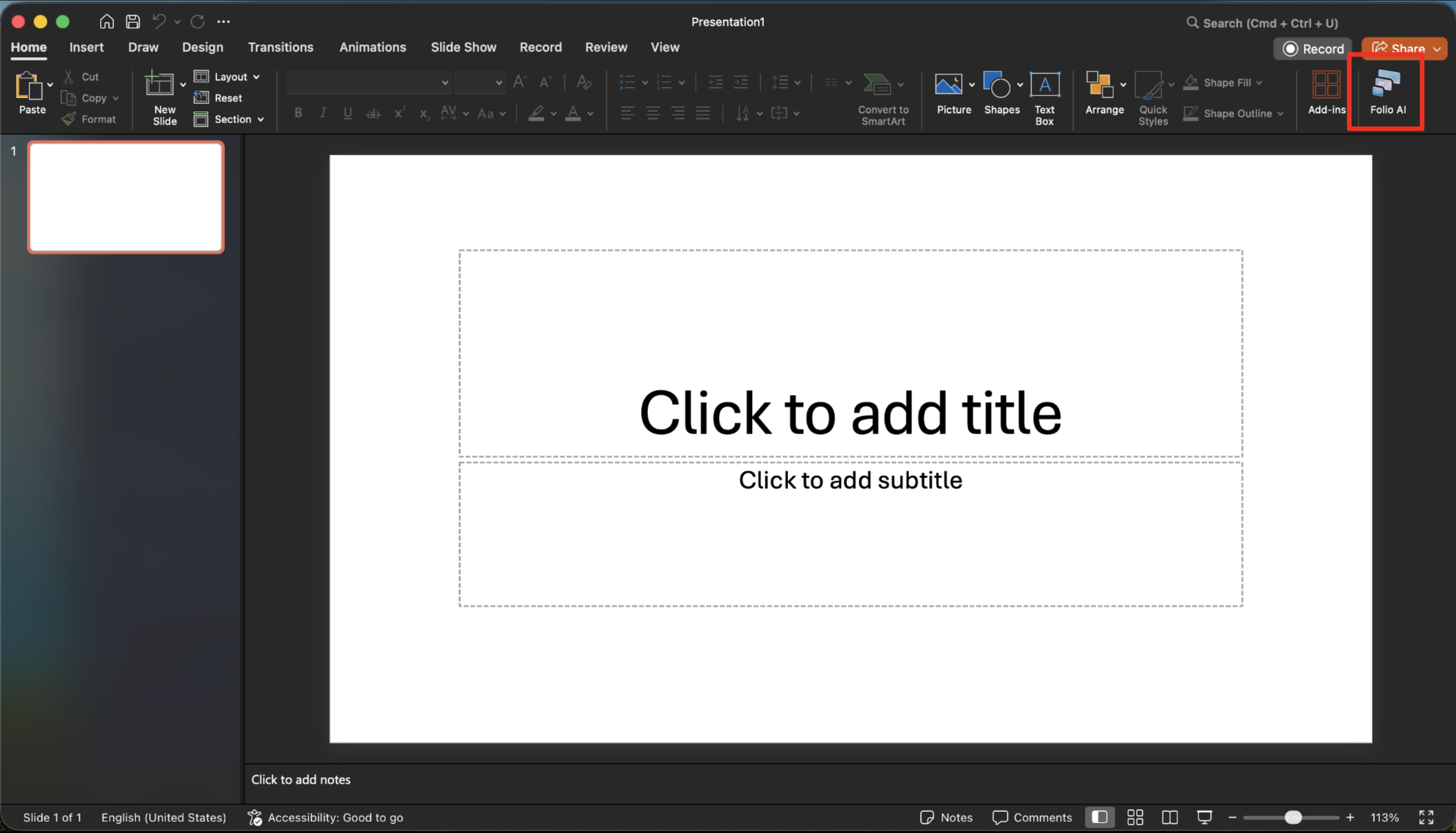
3. Sign in to your Folio account
In the side panel, sign in to your Folio account. Your Folio account is separate from your Microsoft account, so you can sign in with whichever method you prefer. If this is your first time, you'll create an account in a few seconds.
4. Start with your free credits
Every new account includes 500 free credits with no credit card required, so you can try Folio right away. When you need more, you can choose a plan at any time — see Plans and Billing for details.
5. Generate your first presentation
With the panel open, describe the deck you want — or open an existing presentation and ask Folio to edit it. Folio uses your current template's fonts, colors, and layouts so the result stays on brand. You can keep refining with follow-up prompts, and make manual edits in PowerPoint at any point since every shape stays fully editable.

Troubleshooting
Add-in not appearing, sign-in problems, or restrictions on a work account? See the Troubleshooting guide, or get in touch with our team.