Get started
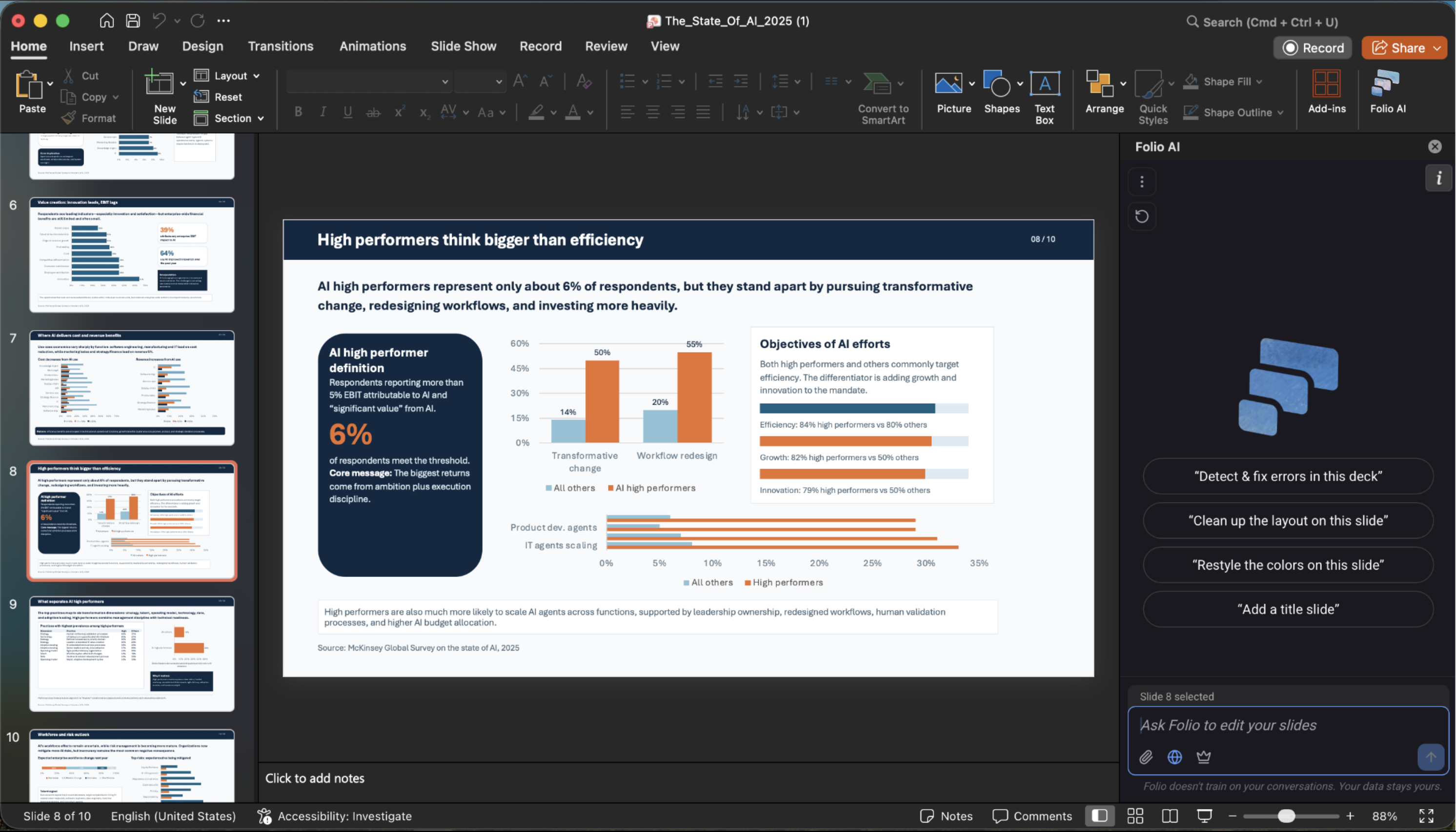
Welcome to Folio AI — the AI agent built for decks where every slide counts. Folio works directly inside PowerPoint and Google Slides, generating new presentations from a prompt and editing your existing decks while preserving your templates, fonts, and brand. This page walks you through everything you need to get started.
A quick overview
New to Folio? Watch this short walkthrough to see how to install Folio and create your first deck in just a few minutes.
Install Folio AI
Folio runs as an add-in inside the presentation tools you already use. Pick your platform:
- Use Folio AI in PowerPoint — install the add-in on Windows, Mac, or PowerPoint on the web.
There's nothing to download to your computer — Folio installs directly into PowerPoint or Google Slides and appears in a side panel next to your slides.
What is Folio AI?
Folio is an AI agent that works with you on your slides, not a separate app you export from. Once installed, you can:
- Prompt to deck — describe what you need and Folio generates a full presentation, applying your existing template's fonts, colors, and layouts automatically.
- Edit an existing deck — open any presentation and ask Folio to restructure, rewrite, reformat, or extend it. Folio works with real PowerPoint and Google Slides shapes, so every element stays fully editable.
- Rewrite and restyle content — adjust tone, length, or audience, and let Folio rework the wording across slides.
- Upload your own files — drop in a logo, image, data, or an inspiration deck, and Folio will use it as context for your prompt.
Start for free
Every new account starts with 500 free credits and no credit card required. Credits are what you spend when Folio generates or edits slides — a complete 10-slide deck typically uses 100–200 credits. When you're ready for more, see Plans and Billing.
Next steps
- Install Folio in PowerPoint
- Troubleshooting — fixes for common issues
- Get Support — reach our team directly